Showing posts with label Windows Network. Show all posts

Saturday, November 15, 2008

Installation of MAC OSx86 in VMware (Windows)

Saturday, November 15, 2008
Last two days, I tried to install MAC OS 10.4.9 in windows VMware after i got to know that MAC OSx86 was able to run on Windows (Intel) machine.I found many sites do guide the installation of Mac OS x86. There are various way to install the OSx86 but what i want to show here is a very simple installation with the use of VMware 6.

Firstly, you must have the following files & software before you start your Mac OSx86 installation:

  1. tiger-x86 image file. [tiger-x86.tar.bz2]
  2. VMware Workstation. [ I'm using VMware Workstation 6
  3. Minimum 6 Gigabytes hard disk space.
INSTRUCTIONS:
Step 1: Install VMware Workstation into your PC.

Step 2: Extract “tiger-x86.tar.bz2″ file into any folder. You can use WinRAR to perform the extraction. Please remind that the data files from “tiger-x86.tar.bz2″ is 6 gigabytes size. So please make sure you extract it into a sufficient free space hard disk drive and the hard disk partition format/type is NTFS.
( if your partition is FAT32 or older format, you will be facing extraction error because FAT32 supports a single file size up to 4 gigabytes only. [ I encounter this problem twice before i get to solve this. my stupidity.. :P]


Step 3: After everything is ready & VMware is installed, launch the VMware Workstation now.


Step 4: Now select “New Virtual Machine” icon or go to menu “File”->”New”->”Virtual Machine”.


Step 5: At first dialog screen, click “Next”. In “Virtual machine configuration”, select“custom” and click “Next” button.


Step 6: For “Virtual machine format”, select “New-Workstation 5″ and click “Next” button.


Step 7: When asking about “Select a Guest Operating System”, select “Other” from the radio button. And Select “Other” also from the drop down list of “Version” selection.


Step 8: In “Name the Virtual Machine”, you are about to name your virtual machine name and select the location of your virtual machine. You can give any name for the virtual machine but i chose “Tiger” as the name. Now, “Browse” to the folder that contains the extracted files of tiger-x86 image [tiger-x86.tar.bz2]. Your folder should have following files: floppy.flp, tiger-x86.nvram, tiger-x86.vmdk, tiger-x86.vmsd, tiger-x86.vmx, tiger-x86-flat.img, and some .log files.


Step 9: After select the location of the folder, click on “Next” button. You will be seeing a message dialog box about “…Having two virtual machines installed in the same location can cause problem…”. Just click “Yes” from the message box.


Step 10: Now you will have to specify the amount of memory allocated to the virtual machine. If you have large memory in your PC, you can allocated more to the virtual machine else i would recommend to allocated at least “Recommended memory” size [green pointer] from the dialog box. Just click on “Next” button again once you specified the amount of memory.


Step 11: In “Network Connection” options, choose “Do not use a network connection” for now and click “Next” button.


Step 12: In “I/O adapter” types, select “Buslogic” from SCSI Adapters.


Step 13: Now you will see the “Disk” dialog box, select the second option, “Use an existing virtual disk” and click “Next” button.


Step 14: After you chose to use an existing virtual disk, you are required to select “the existing disk file”. Thus, just browse to the extracted folder and select the virtual machine disk file. The filename is “tiger-x86.vmdk”. After select the file, just click on “Finish” button. Then the message box will totally disappeared from the screen now but the VMware Workstation is still there. Don’t worry.


Step 15: Mac OS Tiger x86 is ready to launch now. Just select “Start Virtual Machine” from “Tiger” virtual machine or click on the Green Arrow button ( PLAY button) on the top left corner of the VMware.


CONGRATULATIONS!! You shall enjoy your Mac OS Tiger x86 in your VMware now.


9 comments

Friday, September 5, 2008

Setting up network between host and guest machines in VMWare

Friday, September 5, 2008
I am using Windows XP Host and have installed VMWare for Linux RHEL 5 which will be the Guest operating system.I will get the request timed out error When am trying to ping the IP address of host machine from Guest machine and vice versa.

After Googling, I found the solution and now am able to ping or connect between the host and guest machines.

The problem is quite simple.By default, i have selected the VMWare network configuration as NAT settings.After that, I have changed the settings to Bridge Networking.

Now it's Working fine...........

2 comments

Sunday, May 25, 2008

SQL Service Access Denied

Sunday, May 25, 2008
Today, am having a problem in windows server 2003 SQL database server.Actually, I have two database engine in my server, one is Server/MSFW (Firewall) and another one is Server/SQLEXPRESS.

The server/MSFW database engine has started and connecting perfectly without issues. But, the other one Server/SQLEXPRESS has not started and unable to start manually from SQL Configuration manager and Services.msc. It gave the error message in event viewer is

"UpdateUptimeRegKey: Operating system error 5(Access is denied.)"

Finally, I found the solution on Google :

In Services.msc, Double click on the Service which one you faced issue (Server/SQLEXPRESS) and then click on the 'Log On' tab. Change the 'Log on as' option from 'This account...' to 'Local system account'.

6 comments

Tuesday, May 20, 2008

Types of Proxies

Tuesday, May 20, 2008
There are several types of proxies. Proxy of each type is designed to solve its specific tasks, however they have much in common, and their abilities coincide in many features.

HTTP Proxy

It is the most widespread type of proxy servers and when you hear just "proxy", it means nothing, but this type of a server. Earlier with a help of this proxy it was only possible to view web pages and pictures and download files. Now, new program versions (ICQ, etc.) know how to work through the HTTP proxies. Browsers of any versions know how to work with this type of proxy.

SOCKS Proxy

These proxy servers know how to work practically with any type of information on the Internet (TCP/IP protocol), however for their use in programs there should be obviously indicated a ability to work with SOCKS proxy. Some additional programs are necessary for using of SOCKS proxies within a browser (browsers do not know how to work through SOCKS proxy). However, any ICQ versions (and many other popular programs) can work perfectly through the SOCKS proxies. At last, we want to pay attention, while working with socks proxies it is necessary to specify its version: socks 4 or socks 5.

CGI Proxy (anonymizer)

This type of proxy server could be accessed only with a browser. In other programs their using is complicated (and one does not need it, there are HTTP proxies). However as this type proxy is initially designed for operation through a browser, one can use it in a very simple way. Moreover, you can construct a chain from CGI proxies without any problems.

FTP proxy

This type of proxies is highly specialized and aimed for work only with FTP servers. You can use these proxies in most popular file managers (FAR. Windows Commander, etc.), download managers (CuteFTP, GetRight, etc.) and in browsers.

0 comments

Tuesday, April 29, 2008

DzSoft Perl Editor new

Tuesday, April 29, 2008

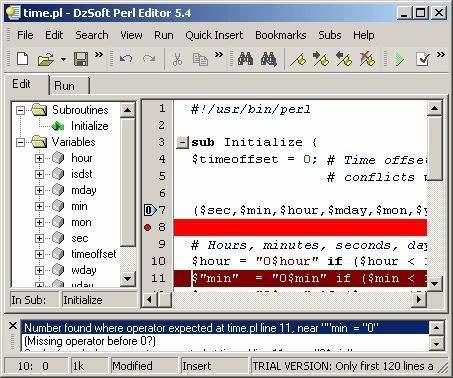
DzSoft Perl Editor is a tool for writing, editing, and debugging Perl/CGI scripts. It has a comfortable and intuitive interface both for beginners and advanced programmers. DzSoft Perl Editor is deceptively simple, but it is really a very powerful tool. It has debugging features, a very comfortable editor with syntax highlighting, a syntax check feature that finds errors in your script, and many other features for easy and comfortable Perl development.

Key Features:
* Customizable Syntax Highlighting
* Run the script and see the result immediately in the internal browser without a web server
* Syntax Check
* Collapsible subroutines
* Customizable code snippets
* Full server simulation
* Full control of the environment variables and input data
* Code Explorer
* Can upload the script to FTP
* HTML export and print with syntax highlighting
* Super comfortable editor with savable bookmarks
* SDI interface that supports multiple instances
* Windows/Unix/Mac line breaks formats support
* OfficeXP-styled menus and toolbars
* "Run in Command Prompt" feature (with debugging)
* Built-in POD viewer with automatic detection


Perl Editor
18 MB
Note : Mail me for RAR password

0 comments

Thursday, April 17, 2008

KAVO.exe and TAVO.exe VIRUS Removal

Thursday, April 17, 2008
Past few days, am facing KAVO.exe and TAVO.exe virus threat detection in my office network.
I totally scanned my network, but am not able to remove those viruses. So, I try Google and found one fix for these viruses.Find below some info for these stupid viruses.

Information:

The virus kavo.exe and tavo.exe spreads from partition including removable drives, the virus copy two files periodically "autorun.inf" and another file, if you delete it from a partition, these two files return into their previous place a few seconds after removal.

The fix removes all variants of tavo and kavo virus.


KavoTavo
1.1 MB
Note : Pl Mail me for RAR Password

4 comments

Monday, February 25, 2008

ISA Server 2006 Issue

Monday, February 25, 2008

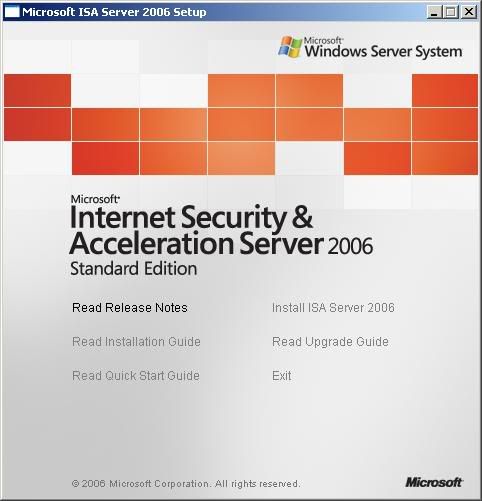
Today morning, I am unable to access the internet from ISA server itself. And from the client cannot access ISA server.

In IE, I got a message “The ISA server denied the specified Uniform resource Locator”
Actually am a newbie of ISA concept. So, I learn some basics of ISA and firewall rules thru Google. Finally I sorted out these issues.

After installing the ISA server 2006, we have to create two outbound firewall chain rules for accessing external network as well as internal.

Two rules as follows:-
1. To allow all outbound connections from local host and internal to External network (This for internet access)


2. To allow all outbound connections from local host and internal to internal and local host network (This for internal network access)

Find more information about ISA at MSFORUMS Page


0 comments

Tuesday, February 5, 2008

Windows Offline Files Synchronization Issue

Tuesday, February 5, 2008
In my client desktop (XP), I found some error and warning messages during system log-off.
The error messages are :-
1. Files of this type cannot be made available offline.
2. Unable to made archive1.PST file available offline

Then, I verified and reinitialized the CSC (Client Side caching) database files by the following procedure.

1. In Folder Options, on the Offline Files tab, press CTRL+SHIFT, and then click Delete Files. The following message appears:
The Offline Files cache on the local computer will be re-initialized. Any changes that have not been synchronized with computers on the network will be lost. Any files or folders made available offline will no longer be available offline. A computer restart is required.

Do you wish to re-initialize the cache?

2. Click Yes two times to restart the computer.

After I created a new offline CSC database and start synchronization.
Issue Solved !!

0 comments

Sunday, January 27, 2008

Windows Installer....Preparing to Install....Issue

Sunday, January 27, 2008
Today, When i trying to open the QuickBooks application in one of our client desktop,I got one pop-up window for "Windows Installer..Preparing to install" thats all...application struck, not able to open.

Then I repaired and re-installed the QuickBook application, nothing worked.After that i found one cool patch for this issue.

"Windows Installer CleanUp Utility"

I used this utility to remove my (Quick book) application program in Windows installer configuration information.

Wow...Issue solved...

Find more information about this utility at Microsoft KB

8 comments

Tuesday, January 22, 2008

VPN Server Deployment

Tuesday, January 22, 2008
Yesterday, I have worked on VPN server deployment in our office. We are planning to use our windows server 2003 as a VPN server.

But In our windows server 2003, we have only single NIC.

So, I have deployed VPN server according to single NIC. The procedure as follows

1. Configured RRAS server for single NIC
2. Enable Router to forward PPTP packets (1723)
3. Create a VPN client

After established the VPN connection, the VPN client not able to ping or communicate to the RRAS server. So, I Google it and found the following useful information.

Cannot reach beyond the RRAS server from VPN clients?

Many a time we face this issue - after making a VPN connection to the Routing and Remote Access server, we are unable to reach the machine on the network behind the VPN server. Here are a few tips to troubleshoot this.

Let's consider this example to understand this well.

VPN Client <---Internet---> RRAS server <----------------> LAN client

Static pool configured on RRAS server: 10.0.0.1 - 10.0.0.10 [This means that the VPN clients will get a 10.0.0.X address from this pool]

Public interface of RRAS server to which clients connect: 65.54.46.9

Private interface of RRAS server: 192.168.0.4 (The LAN clients on this network will have addresses 192.168.0.X)

We want to reach the LAN client 192.168.0.16 from the VPN client 10.0.0.2. The following are the things that we need to ensure for this

(1) Need to have proper routes on the VPN client to reach the machines behind the RRAS server

For our example, on the VPN client we need to have a route to reach the LAN client i.e. for 192.168.0.16 as the destination with the VPN server (10.0.0.1) as the gateway as follows.

route add 192.168.0.0 mask 255.255.255.0 10.0.0.1 if

This route makes sure that any packet destined to the LAN clients will go out through the PPP adapter of the client to the server's internal interface. As the RRAS server has one interface on the same network as the LAN client, it will route it accordingly to the LAN client.

On the VPN client side, a default route can also be added which can be used to reach the internet [otherwise even internet requests will go through the RAS server].

This concept is called split- tunneling and is explained in the below article. http://www.microsoft.com/technet/community/columns/cableguy/cg1003.mspx

(2) Need to have correct routes on the LAN clients behind the RRAS server for the VPN clients

The packet from the VPN client will reach the LAN client if the route on VPN client is proper which is ensured by (1) above.
However, for the packet from LAN client to reach the VPN client, we should have correct routes on the LAN client too. For example, when you try to ping 192.168.0.16 from the VPN client, the routes on the VPN client will aid in the echo request to reach 192.168.0.16.

However, for the echo reply from 192.168.0.16 to reach the VPN client, you LAN client should have a route for the VPN client with gateway as the private interface of RRAS server as follows:

route add 10.0.0.0 mask 255.255.255.0 192.168.0.4 if

This way, the echo reply destined to 10.0.0.2 will reach the RRAS server which is the next hop according to the above route. Once it reaches the RRAS server, the server knows how to send it to the client as it will have a route for all clients conencted to it.

Note: On the LAN clients, a reverse route can be added individually on all the clients or all LAN clients may be pointing to some router which then can have a reverse route for 10.0.0.0 network OR RRAS server itself can be the default router for LAN clients

1 comments

Monday, December 24, 2007

WIN XP - Double click with Mouse to File/Folder open Properties page

Monday, December 24, 2007
First time in My system, I cant double click to open file/folder or anything with Mouse.It opens only properties page.

I checked the following and no luck:-

1.Mouse button settings and properties
2.Accessibility options / sticky keys
2.Virus,Spyware/Malware programs

Finally...That was a simple and stupid fix.am re-installed the mouse driver and its working fine now.

0 comments

Saturday, December 22, 2007

Cannot Access Own website in Internal Domain

Saturday, December 22, 2007
Last week, We've moved our web server and domain to new network and yesterday am troubled with internal network users unable to resolve our own website, but from external world we can access.

Then i checked the DNS server CNAME record for 'www' and found everything fine.And then googgle it, found DNS server cache is the issue.

And then clear the DNS server cache and last our internal network users can able to resolve our website.

Find more infomation about DNS server cache at DNS Cache

1 comments

Friday, November 30, 2007

Dynex Webcam Issue - Black screen

Friday, November 30, 2007

One of my project manager faced the black screen issue in dynex webcam.He asked me to solve this issue.I gooogle and find out the simple solution.The solution is below.

I know this camera has had a bit of a bad rap, but I'm here to clear all that up. After getting it set up right after some research, I found this webcam to be a nice & neat gadget. The video & picture qualities are somewhat more refined than the Microsoft VX-3000 (which I own as well). And the mic on the camerca works fine as long as the echoes are cleared out (which happens to all mics once in a while).

I strongly recommend this camera to anyone looking for a nice lil webcam with multi-functionality with a low price tag.

For direction on getting beyond the black screen:

I realized that 99% of customers (PC) have problems getting beyond the black screen so here's the step by step instruction on on to set your Dynex DX-DTCAM correctly.

1.) Without plugging in the webcam, install the driver directly from the CD-ROM
2.) Now plug in the webcam into the USB, and Windows will say "new device detected"
3.) Click the advanced option in wich you can choose the drivers folder. Then on the next window you click on the *manually choose* option.
4.) You will see the Dinex drivers appear, select it and install.

DO NOT UPDATE DRIVERS FROM THE DYNEX SUPPORT SITE. It's useless & will confuse the hardware.

13 comments

Friday, October 19, 2007

Remote Desktop Connection ( RDC ) Port Forwarding

Friday, October 19, 2007
Yesterday,I unable to access my remote desktop via RDP (Remote Desktop Protocol), I got an error message "Unable to find the remote server".

After that, i checked the both Remote Desktop properties and internet properties, but no luck.

Finally i Google and found the port forwarding is not done in our router.

Then i enabled the following port in router

Application or Description field: RDC
Port Range Start: 3389
Port Range End: 3389
Protocol Type: TCP & UDP

0 comments

Thursday, October 18, 2007

Prevent Group Policy Settings from applying to administrator

Thursday, October 18, 2007
Typically, if you want Group Policy to apply only to specific accounts (either user accounts, computer accounts, or both), you can put the accounts in an organizational unit and then apply Group Policy at that organizational unit level. However, there may be situations where you want to apply Group Policy to a whole domain, but you may not want those policy settings to also apply to administrator accounts or other specific users or groups. The following procedure can prevent Group Policy from applying to administrative accounts (or any other group or user account you specify) by editing the Access Control List (ACL) for the policy:

1.Click Start, point to Administrative Tools, and then click Active Directory Users and Computers.
2.In the left console tree, right-click the name of the domain where the policy is applied, and then click Properties.
3.Click the Group Policy tab.
4.Click the group policy object that you do not want to apply to administrators. By default, the only policy that is listed in the window is the Default Domain Policy.
5.Click Properties, and then click the Security tab. If the group or user who you do not want policies to apply does not appear in the list, use the following procedure:
a. Click Add.
b. Click the domain where the account resides.
c. Find the account, and then click it in the list.
d. Click OK.
Continue with the remaining steps.
6.Click the administrators group (or other group or user) that you do not want the policy to apply to.
7.In the Permissions windows, click to select the Deny check box for the Apply Group Policy permission. This prevents the group policy object from being accessed and applied to the selected group or user account.

10 comments

Thursday, August 30, 2007

Windows XP Time synchronization with external source

Thursday, August 30, 2007
The following command is use to synchronize the windows XP time with the external source.External source like (network PC,Internet time server..) are use to synchronize.

w32tm /config /syncfromflags:manual /manualpeerlist:peerlist

[Peerlist : External source]

w32tm /config /update

Find more details about the time synchronization at Microsoft KnowledgeBase

1 comments

Thursday, August 23, 2007

Windows Server 2003 - Event ID 14192 Issue

Thursday, August 23, 2007
For the past two weeks, i faced an issue in my windows 2003 server.The issue is when system restarts or shutdown i received an error message during startup.

"At least one service or driver failed during system startup. Use Event Viewer to examine the event log for more details."

Then i analyzed the Event log and i found the details of the issue.I see these information in event log

Source : Microsoft ISA Server Con
Event ID : 14192
Description : ISA Server Control service failed to start because the operating system service Windows Firewall/Internet Connection Sharing (ICS) is already running. To fix this problem use ISA Server setup to reinstall ISA Server.

After that,I reinstall the ISA server setup and the issue is solved.

Find more information about this issue at the Microsoft Web site


3 comments

Wednesday, August 1, 2007

Setup Windows XP Backups & Scheduled Tasks

Wednesday, August 1, 2007
BACKUP
Recommended Backup Schedule:

* Four (4) days a week: Run a DAILY DIFFERENTIAL BACKUP. A DIFFERENTIAL backup will backup only those files that have been created or modified since your last NORMAL backup.
* One (1) day a week: Run a WEEKLY NORMAL BACKUP. A NORMAL Backup will backup ALL your selected files and mark them as backed up.

How long will backups take to run and what is the impact on my computer?

Daily differential backups will take a shorter time to run than your normal full backup since this backs up only modified and new files. Depending on how many files are involved this backup may only take a few minutes. You should be able to work normally on your computer, but may notice a slight slow down.

Weekly normal full backup will of course take longer since it backs up all your selected files and will hold more data. Again, how much data you have will determine how long. If you have 2GB or less of data the backup should take less than one hour. During this time you may notice a slow down in computer performance. So, you may want to schedule this during a time when you are not using your computer.

What is involved?

There are four (4) processes involved in setting up your backups. Repeat for all backups to be scheduled.

1. Create a folder to hold your backups, (Do this step only ONCE)
2. Select files to backup.
3. Schedule how often you want the backup to run, and
4. Run the task and confirm that the data backed up correctly.

Step 1: Create a Folder on your Z:\drive (Network storage space) to hold your backups (Do this step only once)

1. Open My Computer
2. Double Click your Z Folder. (Look for a folder similar to 'Userdir' (Z:))
3. Make a new folder called: My Backups

Step 2: Select your Backup Files

1. Select: Start | All Programs | Accessories | System Tools | Backup
2. You will see: Welcome to Backup Utility
3. Select: Backup Wizard (Advanced)
4. The Welcome to Backup Wizard window will display. Click NEXT
5. When prompted for What to Backup . Select Backup selected files (or select Let me choose what to backup)
6. Click NEXT
7. Items to Backup window will display. From Left hand window pane drill down as follows:
* Double click on: My Computer
* Double click on: Local Disk (C)
* Double click on: Documents & Settings
* Double click : <your username>
8. From the Left Hand window pane , Place a checkmark in front of the following:
* Application Data
* Cookies
* Desktop
* Favorites
* Double Click Local Settings and place a checkmark in Application Data ONLY
* My Documents
* If you have created any extra folders, be sure to include those
9. Click NEXT
10. Choose a place to save : Click BROWSE and select Z:\My Backups
11. In the Filename box : Type in a name for your backup folder -
* For a Weekly backup enter: Backup Weekly
* For a Monthly Backup enter: Backup Monthly
* For a Daily Backup enter: Backup Daily
12. Click SAVE
13. Click NEXT
14. The window, Completing the Backup Wizard will display. Click ADVANCED.

Step 3: Schedule how often to run the backup

1. Select your Type of Backup from the pull down list and then click NEXT
* For a DAILY backup choose DIFFERENTIAL which will backup MODIFED OR CREATED FILES.
* For a WEEKLY backup choose NORMAL which will backup ALL SELECTED FILES.
2. In the How to Backup window: Leave both statements blank .
3. Click NEXT
4. Under Backup Options : Select Replace existing Backups. Click NEXT
5. When prompted for When to Backup :
* Select Later
* In the Job Name box: Type in DAILY FOUR
* Click Set Schedule
6. FOR A DAILY DIFFERENTIAL BACKUP - In the Schedule Job window
* In Schedule Task: select: WEEKLY.
* In Start Time : <select your start time>
* Under Schedule Task Weekly: <select the FOUR days you want this task to run>
* Click OK
7. FOR A WEEKLY NORMAL BACKUP - In the Schedule Job window
* In Schedule Task: select Weekly
* In Start Time : <select your start time>
* Under Schedule Task Weekly: <select the ONE day you want this task to run>
* Click OK
8. The Set Account Information Box will appear. Your default JagNET user id will appear. Type in your JagNET password and confirm . Click OK .
9. Click NEXT
10. You may again be prompted to enter your Jag NET password and confirm password. Click OK .
11. Click FINISH

Step 4: Test Scheduled Tasks

1. Select: Start | All Programs | Accessories | System Tools | Scheduled Tasks
2. A list of your scheduled tasks will display.
3. Right Click the task to test and select RUN.

Step 5: Confirm backup

1. Go to My Computer | Z:\ | My Backups
2. Confirm the recent date and time for the backup

NOTES :

1. To review what files are included in your backup command , find the file in the following directory and open it with Notepad. You can also edit this file to remove a file that no longer needs to be backed up or add a file/folder.
\Local Settings\Application Data\Microsoft\Windows NT\NTBackup\data
2. Backup logs are also in the above directory.
3. To change password : Start | All Programs | Accessories | System Tools | Scheduled Tasks. Right click on the task and select properties. If you change your JagNET (windows login) password, you MUST change the password associated with your backups.
4. To change the time/frequency of the backups : Start | All Programs | Accessories | System Tools | Scheduled Tasks. Right click on the task and select properties.
5. To delete the task: Start | All Programs | Accessories | System Tools | Scheduled Tasks. Right click on the task and select Delete.
6. Types of Backups
* Normal : Backs up selected files and marks each file as backed up.
* Copy : Backs up selected files, but does not mark any as backed up.
* Differential : Backs up selected files only if they were created or modified since the previous backup, but does not mark them as backed up.
* Incremental : Backs up selected files only if they were created or modified since the previous backup.
* Daily : Backs up only files that were created or modified today.

0 comments

Wednesday, July 11, 2007

Block Pen Drives

Wednesday, July 11, 2007
If you want to block pen drives..You just go to the Registry editor,And change the setting in registry

HKEY_LOCAL_MACHINE\SYSTEM\CurrentControl
Set\Services\UsbStor\Start

Change the value to 4

0 comments

Friday, July 6, 2007

Windows 2003 IIS Server - Permission Error

Friday, July 6, 2007
Problem

If the Web based Install will not start and you have installed to Windows 2003 Server, an error like the one below can occur.

Access to the path "C:\WINDOWS\Microsoft.NET\Framework\v1.1.4322\Temporary ASP.NET Files\acb\1a6d1ed3fe0f4362" is denied.


Description: An unhandled exception occurred during the execution of the current web request. Please review the stack trace for more information about the error and where it originated in the code.


Exception Details: System.UnauthorizedAccessException: Access to the path "C:\WINDOWS\Microsoft.NET\Framework\v1.1.4322\Temporary ASP.NET Files\acb\1a6d1ed3fe0f4362" is denied.

ASP.NET is not authorized to access the requested resource. Consider granting access rights to the resource to the ASP.NET request identity. ASP.NET has a base process identity (typically {MACHINE}ASPNET on IIS 5 or Network Service on IIS 6) that is used if the application is not impersonating. If the application is impersonating via , the identity will be the anonymous user (typically IUSR_MACHINENAME) or the authenticated request user.


Solution


The Asp.Net user needs read/write permissions to this directory. This is the temp directory .net uses for the compiled files.

The default installation of .Net doesn't appear to give itself rights to a directory it needs.

In Windows Server 2003, the ASPNET account does not exist. ASP.NET in IIS6 uses the "NETWORK SERVICE" account instead. Add the permissions using that account, as directed in the error message text posted below.

To grant ASP.NET write access to a file, right-click the file in Explorer, choose "Properties" and select the Security tab. Click "Add" to add the appropriate user or group. Highlight the ASP.NET account, and check the boxes for the desired access.


0 comments